Got an audio file that’s too big to email, upload, or fit on your phone? You could just zip it, but that doesn’t actually make the audio smaller — it just wraps it differently. What you need is audio compression.
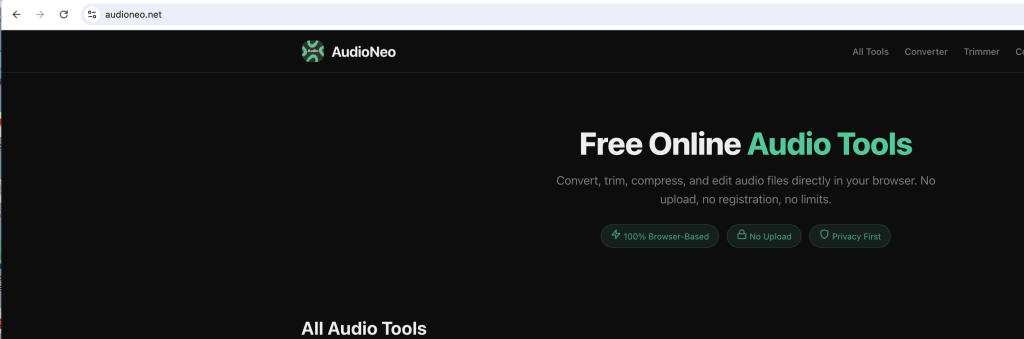
With AudioNeo’s Audio Compressor, you can shrink MP3, WAV, OGG, AAC, and M4A files right in your browser. Adjust bitrate, sample rate, and channels to find the sweet spot between file size and sound quality. No install, no upload, no watermark.
Why Compress Audio?
People compress audio for all kinds of practical reasons:
- Email attachments. Most email providers cap attachments around 25MB. A long recording or high-quality podcast can easily exceed that.
- Faster uploads & streaming. Smaller files upload faster to cloud storage, social media, or messaging apps.
- Save phone storage. Audiobooks, podcasts, and voice memos eat up space. Compress them and fit way more on your device.
- Web & app performance. If you run a website or app, compressed audio loads faster and uses less bandwidth.
- Sharing on WhatsApp / Telegram / Discord. Many messaging apps have file size limits or re-compress your audio anyway — better to control the quality yourself.
The trick is compressing enough to matter, but not so much that the audio sounds terrible.
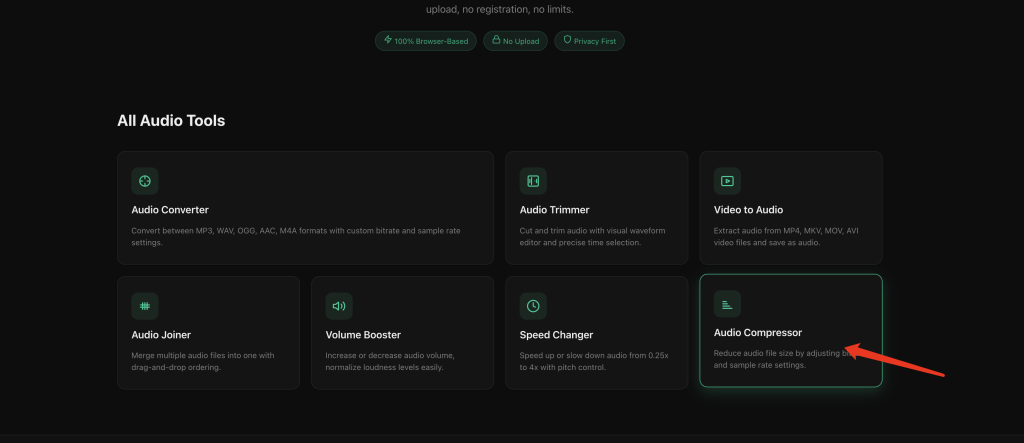
How to Compress Audio Files Online
AudioNeo’s compressor works entirely in your browser. Your file never leaves your device. Here’s how to use it.
Step 1: Upload Your Audio
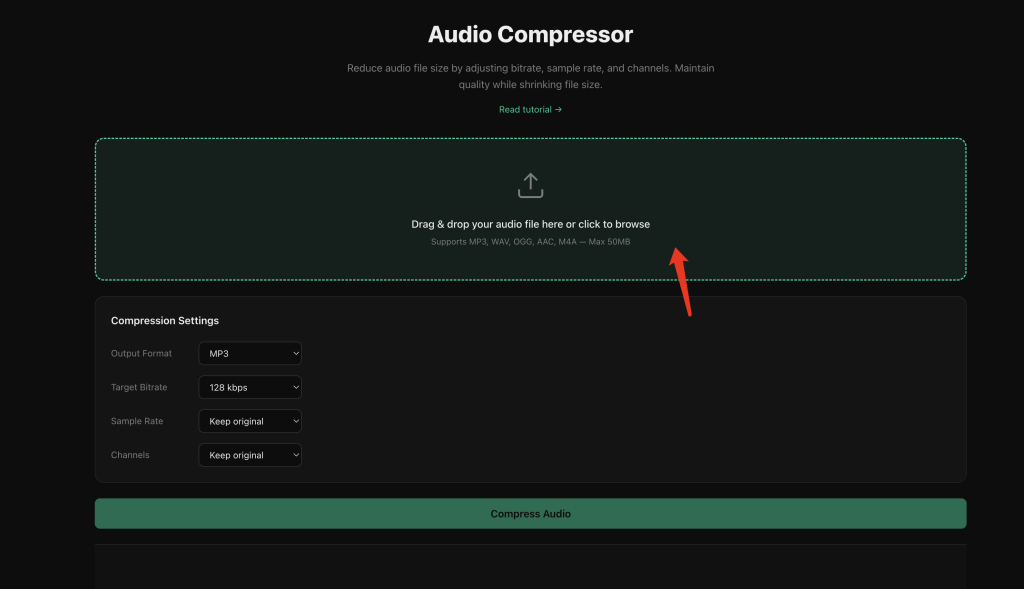
Go to the Audio Compressor page. Drag and drop your audio file onto the upload area, or click to browse and select one from your computer.
Supported formats: MP3, WAV, OGG, AAC, M4A
Max file size: 50MB
Step 2: Choose Output Format
Pick the format you want for the compressed file. You have three options:
- MP3 — the most universally compatible format. Works on every device and platform. Good general choice.
- OGG — better quality at the same bitrate compared to MP3, especially at lower bitrates. Great for voice and music.
- AAC — similar quality to OGG, widely supported on Apple devices and YouTube. The format of choice for iPhones.
If you’re not sure, stick with MP3. It’s the safest bet for compatibility.
Step 3: Set Target Bitrate
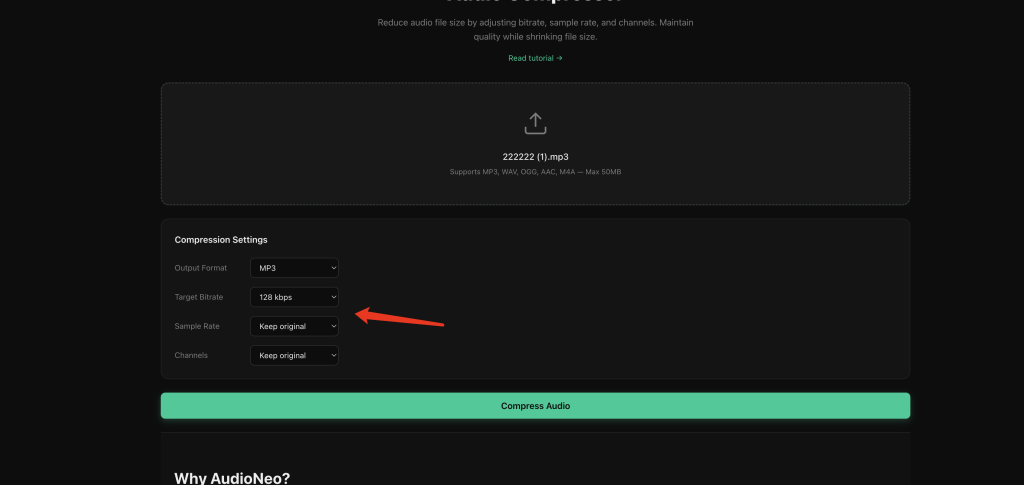
This is the single biggest factor in both file size and quality. The bitrate determines how much data is used per second of audio.
Available options: 32 kbps, 64 kbps, 96 kbps, 128 kbps (default), 192 kbps
- 192 kbps — near-CD quality, barely smaller than the original. Use when you want quality above all.
- 128 kbps — the sweet spot for most people. Good enough for music, podcasts, and general listening.
- 96 kbps — noticeable but acceptable quality drop. Great for podcasts and spoken word where file size matters.
- 64 kbps — perfect for voice recordings, lectures, and audiobooks. Music starts to sound muddy.
- 32 kbps — very small file, but quality is rough. Only use for speech where you just need to understand the words.
Rule of thumb: for podcasts and voice, 64-96 kbps is usually fine. For music, 128 kbps is the minimum I’d recommend.
Step 4: Adjust Sample Rate (Optional)
Sample rate is like the “resolution” of the audio. Most files are 44100 Hz (44.1 kHz) or 48000 Hz (48 kHz). Lowering the sample rate can reduce file size further.
Options: Keep original (default), 22050 Hz, 16000 Hz, 11025 Hz, 8000 Hz
- Keep original — leave it alone if you’re not sure.
- 22050 Hz — good for podcasts and voice. Not ideal for music.
- 16000 Hz / 11025 Hz — fine for speech and phone-quality audio.
- 8000 Hz — telephone quality. Only for when file size is absolutely critical.
For most compression jobs, you can leave this on “Keep original” and just adjust the bitrate.
Step 5: Set Channels (Optional)
Stereo audio has two channels (left and right). Mono has one. Converting stereo to mono roughly halves the data for channels, which can cut file size significantly — especially for speech, where stereo doesn’t add much value anyway.
Options: Keep original (default), Mono
If your audio is a podcast, audiobook, lecture, or any other spoken content, switching to Mono is a free size reduction with basically no quality penalty. For music, you’ll probably want to keep stereo.
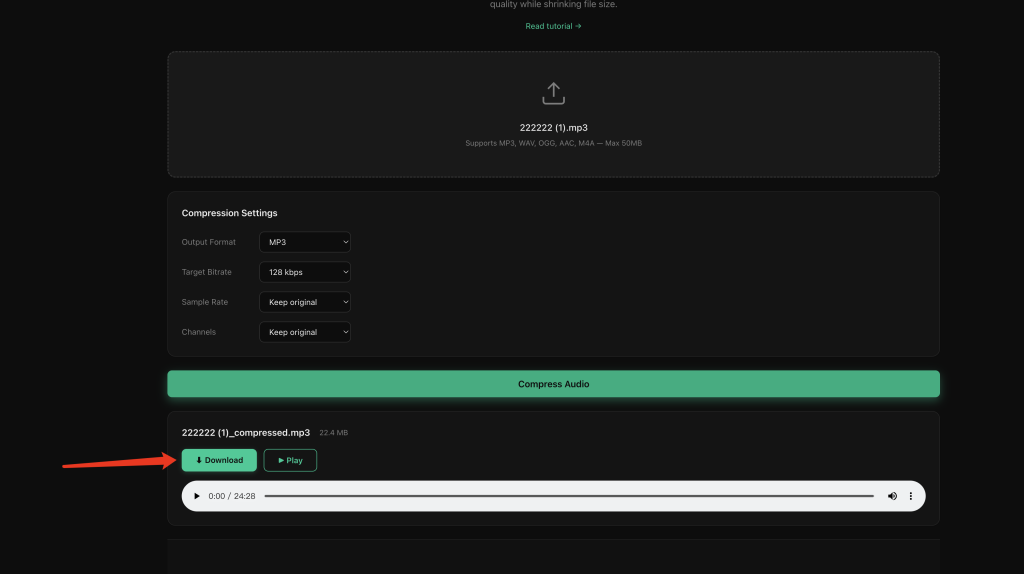
Step 6: Compress and Download
Click the Compress Audio button. The tool will process your file locally in your browser using FFmpeg WebAssembly. When it’s done, you can:
- Preview the result with the Play button to check the quality
- See the compressed file name and exact size
- Click Download to save the compressed file to your computer
Choosing the Right Settings
Not sure which knobs to twist? Here are some quick presets for common scenarios.
Podcast / Spoken Word — balanced
- Format: MP3
- Bitrate: 96 kbps
- Sample rate: Keep original
- Channels: Mono
- Result: roughly 50-70% smaller, still sounds great for speech
Voice memo / Lecture — smallest size
- Format: MP3
- Bitrate: 64 kbps
- Sample rate: 22050 Hz
- Channels: Mono
- Result: 70-80% smaller, perfectly intelligible speech
Music — good quality
- Format: MP3 or AAC
- Bitrate: 128 kbps
- Sample rate: Keep original
- Channels: Keep original
- Result: noticeably smaller, still good-sounding music
Music — high quality
- Format: OGG or AAC
- Bitrate: 192 kbps
- Sample rate: Keep original
- Channels: Keep original
- Result: slight size reduction, barely any quality loss
Why Use AudioNeo Audio Compressor?
Plenty of tools will compress your audio. Here’s why this one’s worth using.
It’s 100% Private
Your audio never gets uploaded to a server. Everything runs locally in your browser via WebAssembly. For sensitive recordings, interviews, or personal voice memos, this is a big deal.
Full Control
Adjust bitrate, sample rate, and channels independently. You decide exactly how much compression to apply. No “small/medium/large” sliders that hide what’s actually happening.
Powered by FFmpeg
Under the hood it’s FFmpeg — the same audio engine used by professional tools. You’re getting real compression, not some sketchy algorithm.
No Strings Attached
No account. No email. No watermarks. No daily limits. No free trial bait-and-switch. Upload, compress, download. Done.
FAQ
Which audio formats can I compress?
You can upload MP3, WAV, OGG, AAC, and M4A files. The output format can be MP3, OGG, or AAC.
How much can I reduce the file size?
It depends on your settings and the original file. Going from a WAV file to 128 kbps MP3 can shrink it by 90% or more. Compressing an already-compressed MP3 will give you less savings. The most aggressive settings (32 kbps + 8000 Hz + Mono) can make speech files tiny.
Will I lose quality?
Yes, compression always reduces quality to some degree — that’s the whole point. The question is whether you can hear the difference. At 128 kbps MP3, most people can’t tell on regular headphones or speakers. At lower bitrates, the quality drop becomes more noticeable, especially for music.
What’s the best format for compression?
It depends on your use case. MP3 has the best compatibility. OGG usually sounds better at the same bitrate. AAC is great if you’re on Apple devices. If you’re not sure, go with MP3.
What’s bitrate, exactly?
Bitrate is how many kilobits of data are used per second of audio. Higher bitrate = more data = better quality = bigger file. Lower bitrate = less data = smaller file = lower quality.
Is there a file size limit?
Yes — 50MB per file. That covers most songs, podcasts, audiobook chapters, and voice recordings.
Does my file get uploaded somewhere?
No. All processing happens in your browser. Your audio never leaves your device. You can even use it offline once the FFmpeg engine has loaded.
Can I use this on my phone?
Yes. The tool works on mobile browsers just like desktop. Upload from your phone, compress, and download back to your device.
More Audio Tools
Need to do more with your audio? Check out these other free tools:
- Audio Converter — Convert audio files between formats
- Audio Trimmer — Cut and trim audio clips
- Volume Booster — Make quiet audio louder
- Audio Joiner — Merge multiple audio files together
- Speed Changer — Speed up or slow down audio
- Video to Audio — Extract audio from video files
All free, all browser-based, all private.