Need to cut the first 30 seconds off a podcast intro, or trim the dead air at the end of a recording? AudioNeo’s audio trimmer handles MP3, WAV, OGG, AAC, and M4A with a visual waveform editor — drag to pick start and end, preview, download. Free, private, no signup.
Why Trim Audio Files?
- Cut intros and outros: Strip the “welcome to my podcast” preamble and the awkward sign-off
- Remove dead air: Cut the long pause, the throat-clearing, the “um” before the real answer
- Make ringtones: Most songs have 30-60 seconds of ringtone-worthy content buried in the middle
- Trim recordings: Voice memos, lectures, interviews — usually need cleanup at both ends
- Sample for editing: Pull a 10-second clip to use in a remix or a video project
- Re-share short clips: Cut the relevant 60 seconds from a 10-minute audio for messaging apps
How to Trim Audio with AudioNeo
Step 1: Open the Trimmer
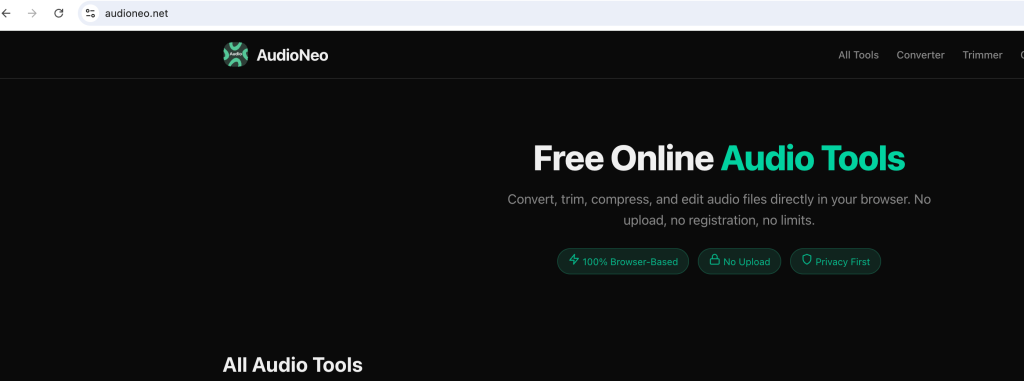
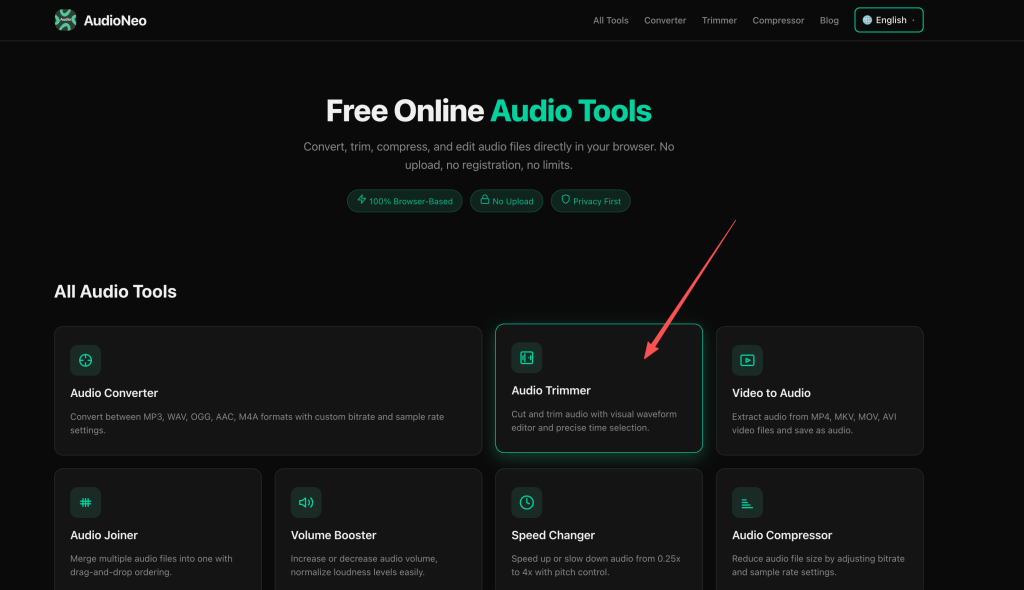
Go to AudioNeo Audio Trimmer. No signup, no install.
Step 2: Upload Your File
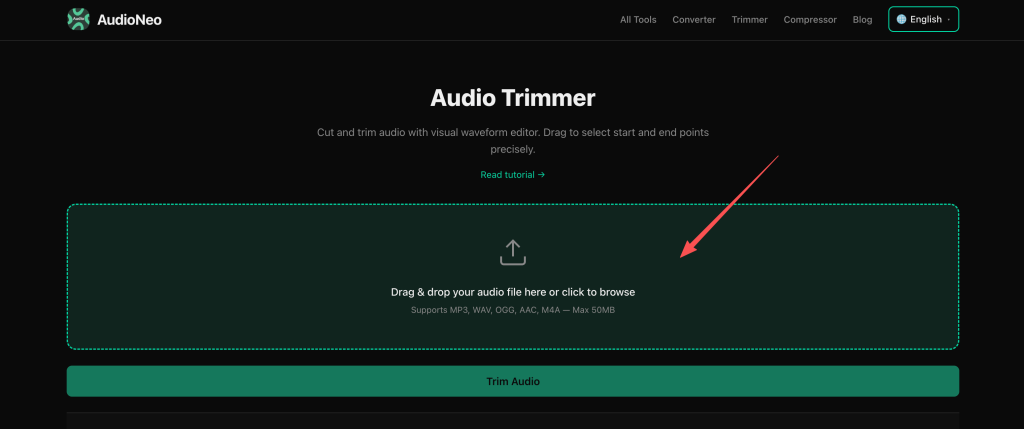
Drag the audio file onto the page, or click the upload area. The tool accepts MP3, WAV, OGG, AAC, and M4A, up to 50MB.
Step 3: Find the Section You Want to Cut
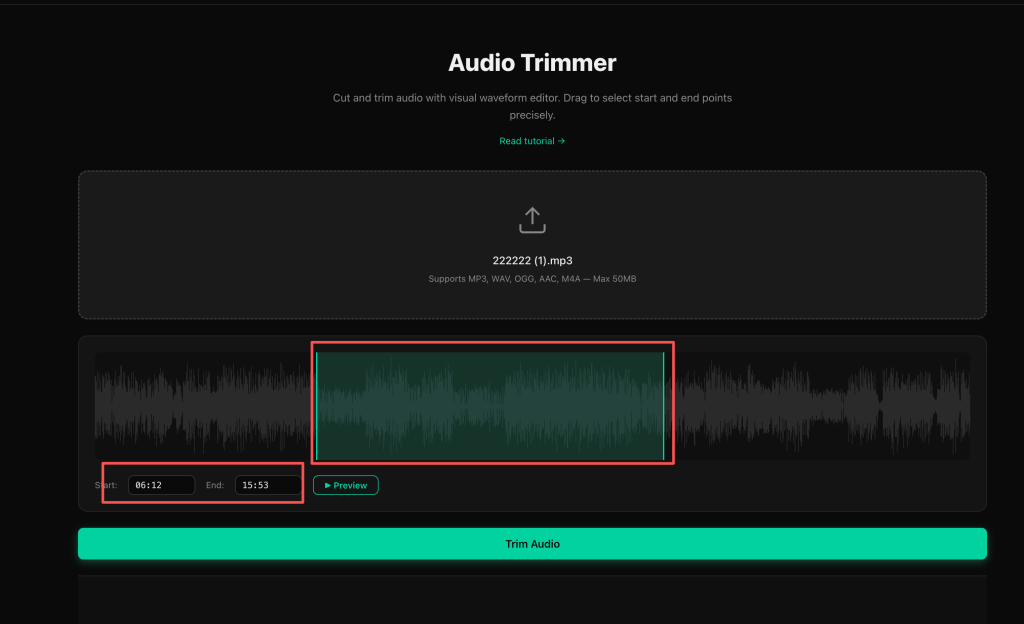
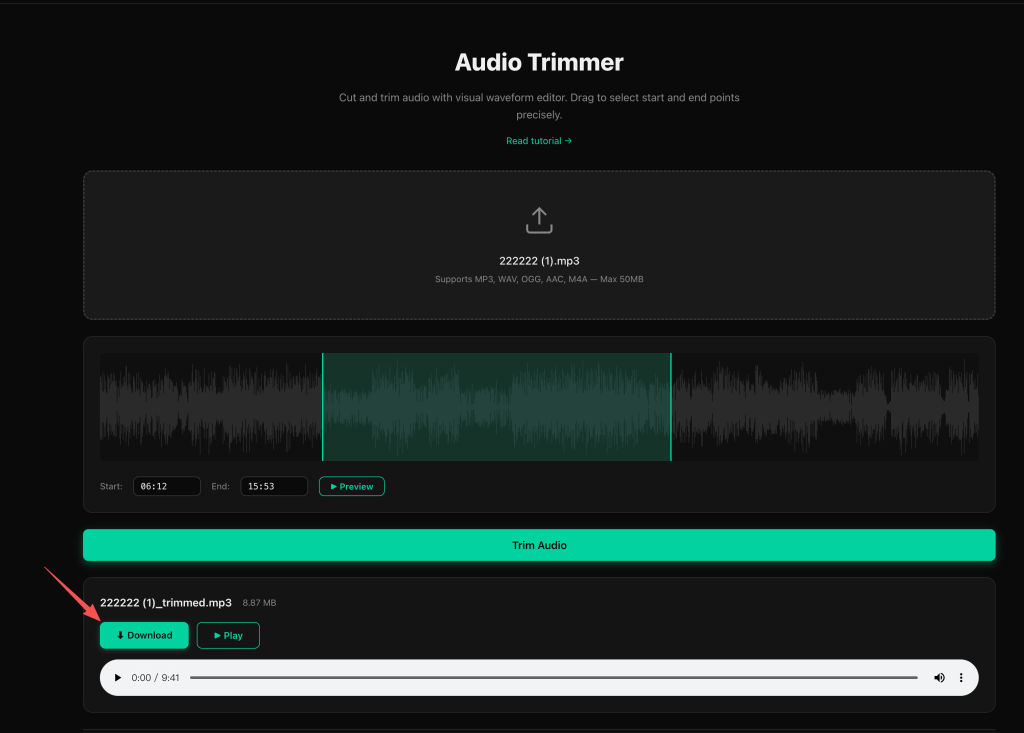
The waveform shows the entire file. Two ways to set the cut points:
- Drag the handles on the waveform to mark the start and end of the section you want to keep
- Type the time directly into the Start and End fields if you know the exact timestamps
The waveform’s zoom level depends on the file length — short files show more detail per pixel, long files compress the view.
Step 4: Preview the Cut
Hit the Preview button to play just the section you’ve selected. This lets you check the boundaries before committing. Adjust the handles if the cut isn’t quite right.
Step 5: Trim and Download
Click Trim Audio. The processing usually takes a few seconds for a short clip, up to 30 seconds for a 50MB file. When it’s done, the Download button appears.
How the Waveform Editor Works
What you’re seeing
The waveform is a picture of the audio’s volume over time. Tall peaks = loud moments, flat valleys = silence or quiet sections. The visual makes it easy to spot where words start, where music kicks in, where the track ends.
Drag handles
The two handles on the waveform define the start and end of the section you keep. The greyed-out area is what gets cut. The colored area is what stays.
Time fields
Below the waveform, Start and End fields show the current selection in mm:ss.ms format. You can click into either field and type a specific timestamp for precision work.
Preview vs final output
Preview plays the selected section without processing anything. Trim Audio is the actual cut that produces the download. Use Preview as many times as you want — it’s instant and doesn’t change the file.
Tips for Precise Trimming
- Zoom in for speech: Speech has gaps between words. The default zoom might hide them. If you can’t see where a sentence ends, try a shorter file or trim by time instead of by drag.
- Cut on a zero-crossing: If you hear a tiny click at the cut point, nudge the handle a few milliseconds earlier or later. The audio waveform crosses zero at quiet moments, and cutting there avoids pops.
- Leave a small buffer: When cutting music, don’t cut right at the beat — leave 10-50ms of margin. Cuts exactly on the beat can feel abrupt.
- Use Preview every time: Always preview before downloading. It’s free, it’s instant, and it saves you redoing the cut.
- Save the original: The trimmer produces a new file. Your original stays untouched in your downloads folder.
How to Cut Audio for Common Use Cases
Cut a ringtone from a song
Most songs have 30-60 seconds of usable ringtone in the chorus. Find the loudest, most distinctive section, drag the handles to capture it, preview to confirm, trim, download. Most phones accept MP3 or M4A for ringtones.
Trim a podcast intro
Podcasts often have 15-60 seconds of music, host chitchat, sponsor read. Drag the start handle to just after the intro ends, preview to make sure you didn’t cut into the real content, trim, download.
Remove dead air from a recording
Open the recording, scan the waveform for flat sections (long silences = flat lines). Drag the start handle to just before speech resumes, then move the end handle to where the next silence starts. Preview, adjust, trim.
Extract a clip from a long file
If you have a 2-hour interview and want a specific 2-minute quote, use the time fields. Type the start timestamp of the quote, then the end timestamp. The drag handles will jump to match.
Why Use AudioNeo?
- Truly private: ffmpeg.wasm runs in your browser. Your file never touches a server.
- Visual editor: The waveform is way easier than typing timestamps blind.
- Preview before commit: Listen to your cut before downloading — no surprises.
- No upload time: Big files stay on your device.
- No registration: Open the page, trim, download, leave.
- 50MB limit per file: Bigger than most “free” tools.
- No cost, no watermark: The output is your file, clean.
Frequently Asked Questions
Does AudioNeo upload my audio to a server?
No. The trimming runs entirely in your browser using WebAssembly. Your audio file is processed locally and never sent to any server. Close the tab and it’s gone.
What’s the maximum file size I can trim?
50MB. The tool enforces this in the browser, so the upload area will reject larger files. For very long audio, consider splitting first with the Audio Joiner workflow in reverse, or use a desktop tool.
Can I trim multiple files at once?
Not yet. The current version processes one file at a time.
How precise is the cut?
Down to the millisecond. The waveform shows individual samples at high zoom, and the time fields accept millisecond values. For music production you’d want sample-accurate tools, but for podcasts, ringtones, and general use this is more than enough.
Can I cut from the middle of a file, not just the ends?
Yes. Drag both handles to select any section in the middle. The output is just that section, not the file minus the cut. The greyed-out area on the waveform shows what’s getting cut.
Can I add fades or adjust volume during the cut?
Not in this tool. The trimmer only cuts. For fades, volume changes, or other effects, run the trimmed file through a desktop editor or the Audio Compressor.
What audio formats are supported?
MP3, WAV, OGG, AAC, M4A as both input and output. Input and output formats are the same — if you upload an M4A, the trimmed file is also M4A.
Does AudioNeo work offline?
After the page loads once, the WebAssembly engine is cached. You can disconnect from the internet and still trim. The trimming itself never needs a server.
Is it really free? What’s the catch?
It’s free. No catch, no “free trial”, no upsell. The tool runs in your browser, which costs us almost nothing per trim.
More Audio Tools
- Audio Converter — Convert between MP3, WAV, OGG, AAC, M4A
- Video to Audio — Extract audio from MP4, MOV, WebM video files
- Audio Joiner — Merge multiple audio files into one
- Audio Compressor — Reduce dynamic range, louder and more even
- Volume Booster — Increase volume beyond 100% without distortion
- Speed Changer — Speed up or slow down audio without changing pitch