Got a bunch of voice memos you want to stitch together, podcast episodes you need to combine with intro music, or song clips you want to merge into a mix? AudioNeo’s audio joiner lets you combine multiple audio files into one right in your browser — no upload, no signup, no watermark.
Why Merge Audio Files?
- Combine recordings: Stitch together multiple voice memos, interview segments, or lecture recordings into one continuous file.
- Add intro/outro music: Drop a 10-second jingle at the start of your podcast and a fade-out at the end.
- Create a mix: Merge your favorite song clips, sound effects, or ambient tracks into a single playlist-style file.
- Fix a split recording: If your recording app crashed or stopped mid-session, merge the parts back together.
- Audiobook chapters: Combine separate chapter files into one long audiobook file for easier listening.
- Presentation prep: Merge background music, voiceover, and sound effects into one track for your video or slideshow.
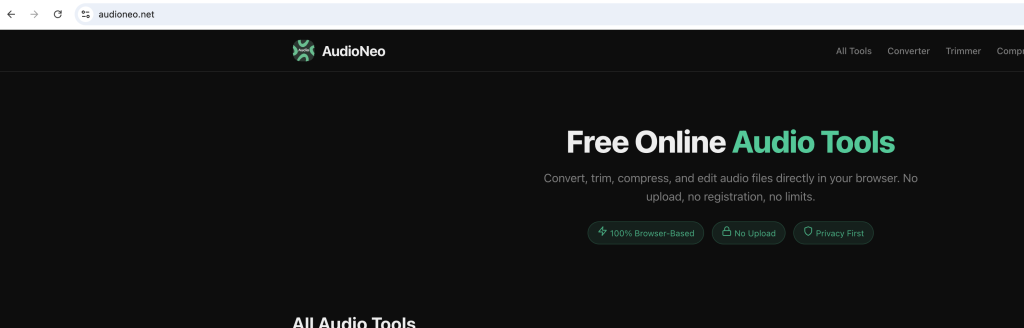
How to Merge Audio with AudioNeo
Step 1: Open the Audio Joiner
Go to AudioNeo Audio Joiner. No signup, no install, no browser extension needed.
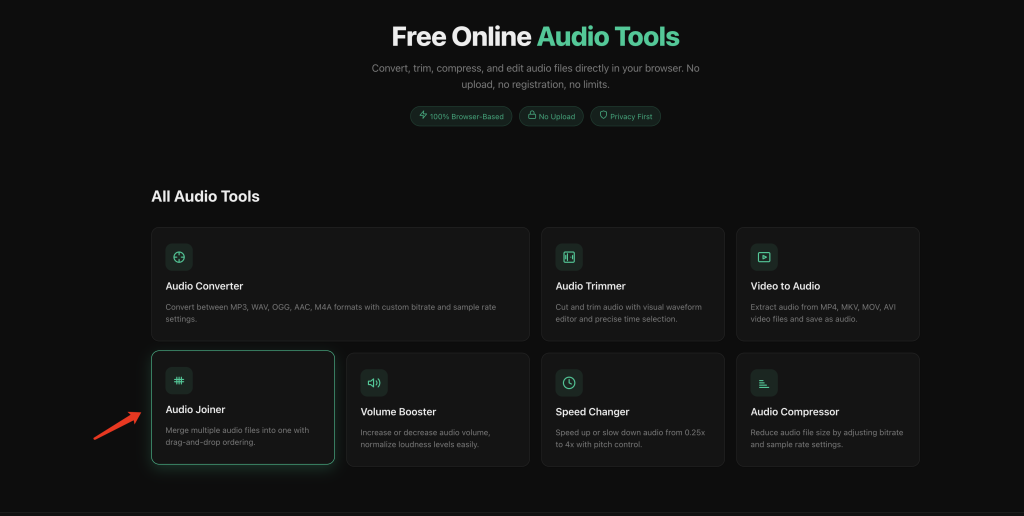
Step 2: Add Your Audio Files
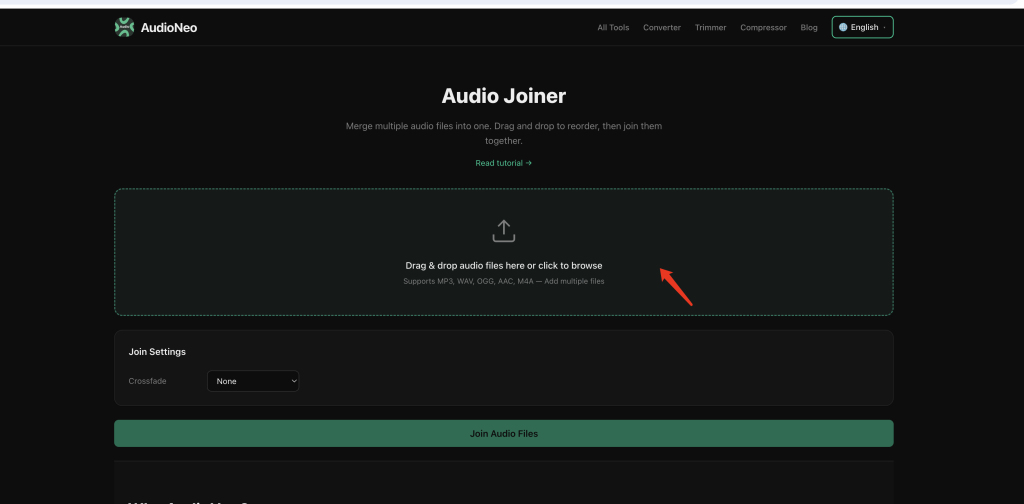
Drag and drop multiple audio files onto the page, or click the upload area to select them. You can add files in different formats — MP3, WAV, OGG, AAC, M4A — the tool handles the conversion automatically.
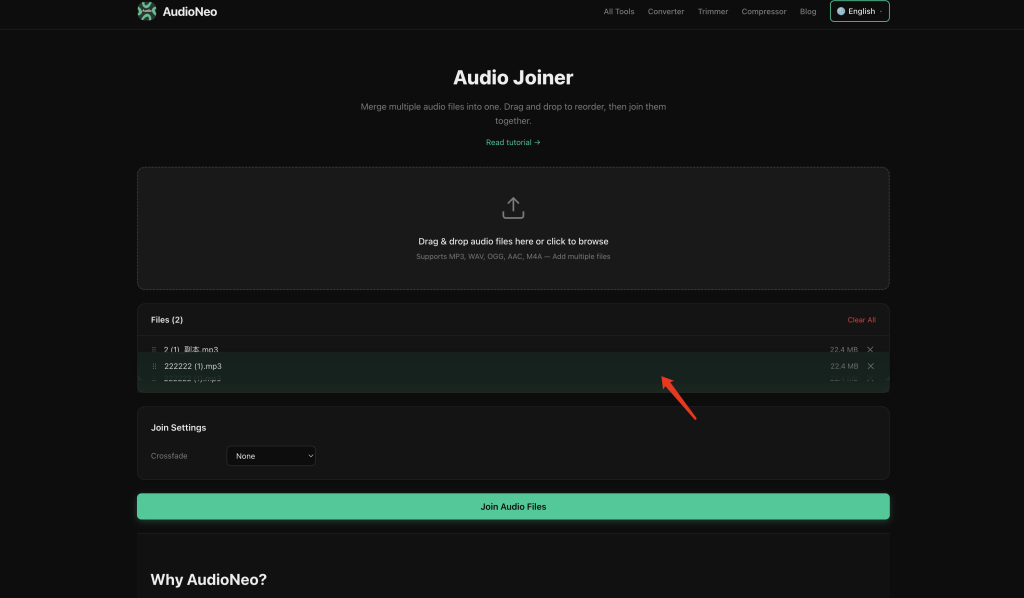
Step 3: Arrange the Order
Drag files up or down to reorder them. The top file plays first, the bottom one plays last.
Step 4: Choose Output Format and Quality
Pick your output format (MP3, WAV, OGG, AAC, M4A) and adjust the quality settings if you want:
Bitrate (64, 128, 192, 256, 320 kbps)
- 64–128 kbps: voice memos, podcasts
- 192 kbps: the sweet spot for music and general use
- 256–320 kbps: high-quality music
Sample Rate (22050, 44100, 48000 Hz)
- 44100 Hz = CD quality
- 48000 Hz = video/streaming standard
Channels (Auto, Stereo, Mono)
- Auto keeps whatever the first file has
- Mono = smaller file size, great for speech
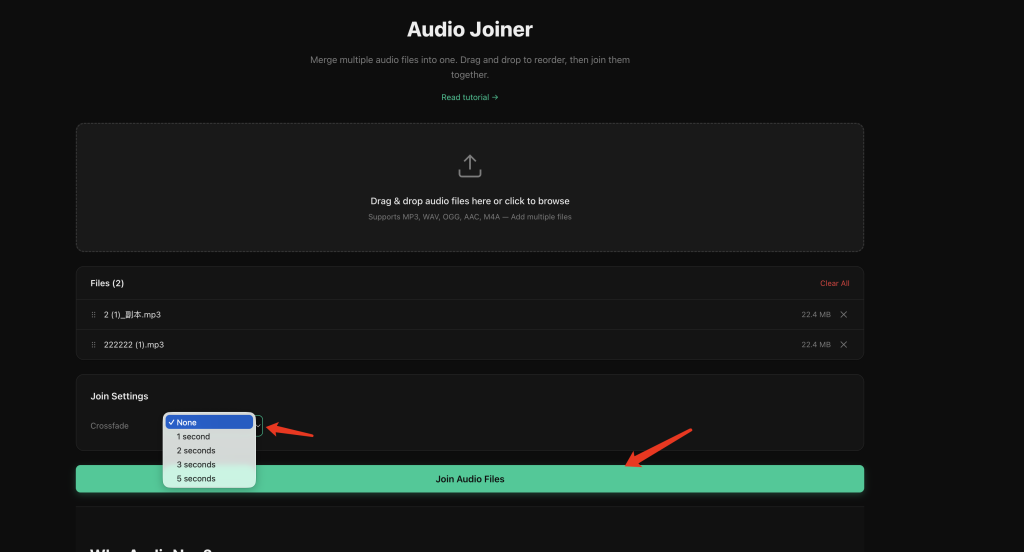
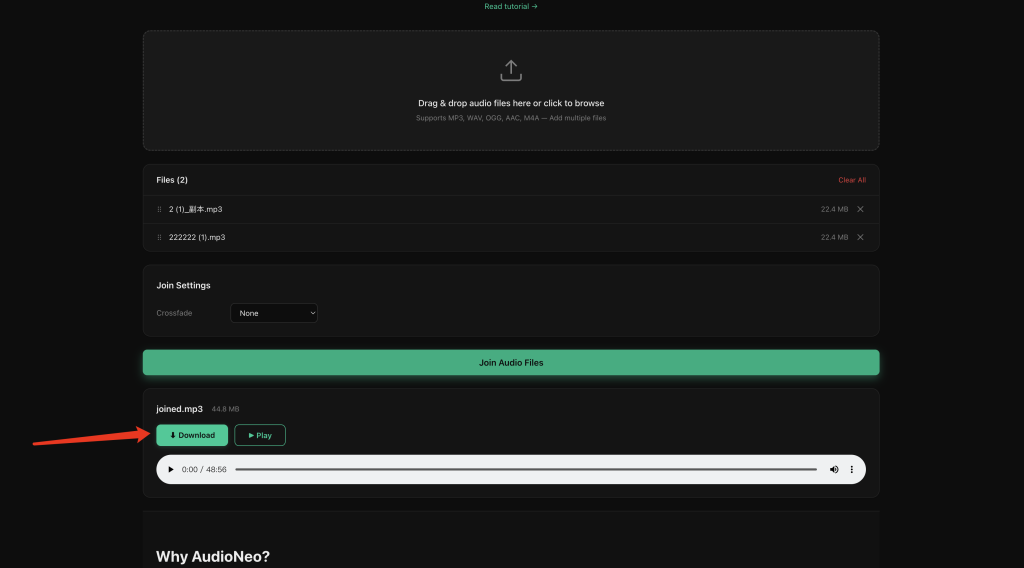
Step 5: Join and Download
Hit the Join Audio button. Processing time depends on how many files and how long they are — a 5-track, 20-minute mix usually takes 10–30 seconds. The merged file downloads automatically.
Which Output Format Should You Pick
MP3
The universal choice. Plays on every device made in the last 20 years. Pick this if you’re not sure.
WAV
Lossless, uncompressed. The highest quality output. Use this if you’re going to edit the merged file later or if quality matters more than file size.
AAC
Better quality than MP3 at the same bitrate. Default for iPhone, YouTube, Apple Music. Great for Apple users and video projects.
M4A
AAC in an Apple container. Same quality as AAC. The format iPhone Voice Memos use.
OGG
Open-source alternative to MP3. Same quality, smaller files. Best for Android and web apps, but older devices and some car stereos may not support it.
Tips for Good Results
- Use the same format as your source files when possible — if you’re merging MP3s, output as MP3 at the same or higher bitrate to avoid quality loss from double compression.
- Match bitrates: If your source files are 192 kbps, don’t output at 320 — it won’t sound better and just makes a bigger file.
- Crossfade: The tool joins files end-to-end with no gap. For smooth transitions between songs, you’ll want a separate audio editor.
- Order matters: Put the files in the right order before joining — you can’t rearrange after the merge without re-cutting.
- Mono for speech: Podcasts, interviews, and voice memos sound just as good in mono at half the file size.
Why Use AudioNeo?
- 100% private: ffmpeg.wasm runs in your browser. Your files never leave your device.
- No upload wait: Drop 10 files and it starts processing instantly. No waiting for uploads to finish.
- No registration: Open the page, add files, get your merged track. No email required.
- Cross-format merge: Mix MP3, WAV, OGG, AAC, and M4A in one session — the tool handles all the conversion.
- No watermark: The output is a clean audio file with no branding or hidden markers.
- Completely free: No “free trial”, no credit card, no pro plan upsell.
Frequently Asked Questions
Does AudioNeo upload my audio files to a server?
No. The entire merge process runs in your browser using WebAssembly (ffmpeg.wasm). Your audio files never leave your device. Close the tab and everything is gone.
How many files can I merge at once?
There’s no hard limit, but practical limits depend on your device’s RAM. Most people merge 2–20 files without issues. For very large projects (50+ files), you may want to do it in batches.
What audio formats are supported?
The tool accepts whatever your browser’s audio decoder supports: MP3, WAV, OGG, AAC, M4A, FLAC (in some browsers), and more. You can mix different input formats — the tool converts them all to the output format you choose.
Will merging files reduce the quality?
If you output to a lossy format (MP3, AAC, OGG), there’s some re-encoding involved, so there can be a tiny quality hit. To avoid this, use WAV as both input and output for lossless merging. If your inputs are already MP3 and you output at the same or higher bitrate, the quality difference is negligible.
Can I add crossfade between tracks?
Not currently. The joiner concatenates files end-to-end with no gap or crossfade. If you need crossfade, you’ll want a full audio editor like Audacity.
Can I adjust the volume of individual tracks?
No, the current version joins files as-is. If you need to level-match volumes, use AudioNeo Volume Booster on each file first, then merge them.
What’s the maximum total length I can merge?
There’s no hard limit. It depends on your device’s RAM. A 2-hour stereo mix at 44100 Hz is about 1.2GB in memory — most modern browsers handle that fine.
Does AudioNeo work offline?
Yes, once the page has loaded. The WebAssembly engine gets cached by your browser. After the first load, you can disconnect from the internet and still merge audio.
Is it really free? What’s the catch?
It’s really free. No catch, no trial, no hidden fees. The tool runs entirely in your browser, which means our server costs are almost zero. That’s why we can keep it free forever.
More Audio Tools
- Audio Converter — Convert between MP3, WAV, OGG, AAC, and M4A formats