Got a YouTube video you want to listen to on your commute, an interview you need as an MP3 for transcription, or a movie scene with a soundtrack you love? AudioNeo’s video-to-audio tool pulls the audio track out of any video file right in your browser — no upload, no signup, no watermark. Supports MP4, MOV, WebM, AVI, MKV, and more.
Why Extract Audio from Video?
- Listen on the go: Turn lectures, podcasts, and interviews into audio files you can listen to while driving, walking, or working out. No need to keep the screen on.
- Transcription: Pull the audio out of meeting recordings or interviews before sending them to a transcription service — smaller files, faster uploads.
- Ringtones and notifications: Grab a sound bite from a video and turn it into a ringtone or alert tone.
- Background music: Extract music from videos for personal projects, presentations, or video editing.
- Save storage: A 1-hour video can be 1GB or more. The same audio as MP3 is 50–100MB.
- Podcast creation: Turn video podcasts or YouTube shows into audio episodes for your podcast feed.
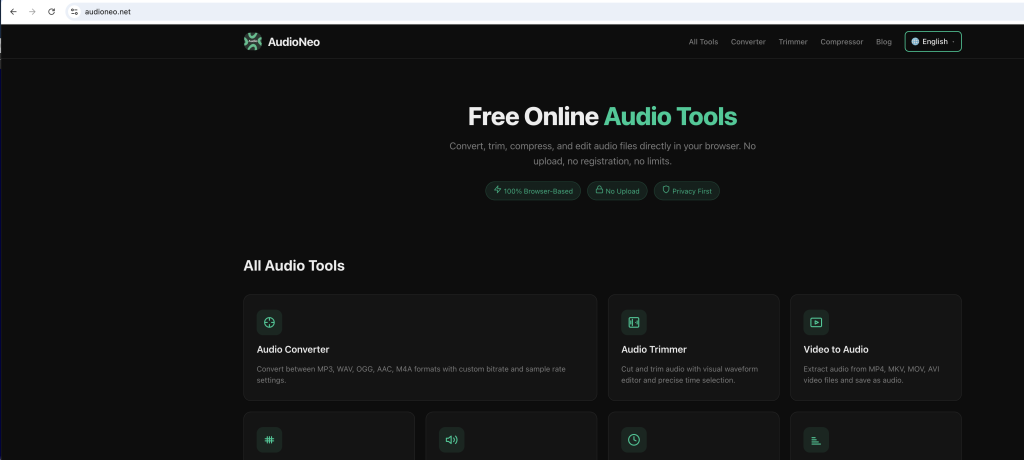
How to Extract Audio from Video with AudioNeo
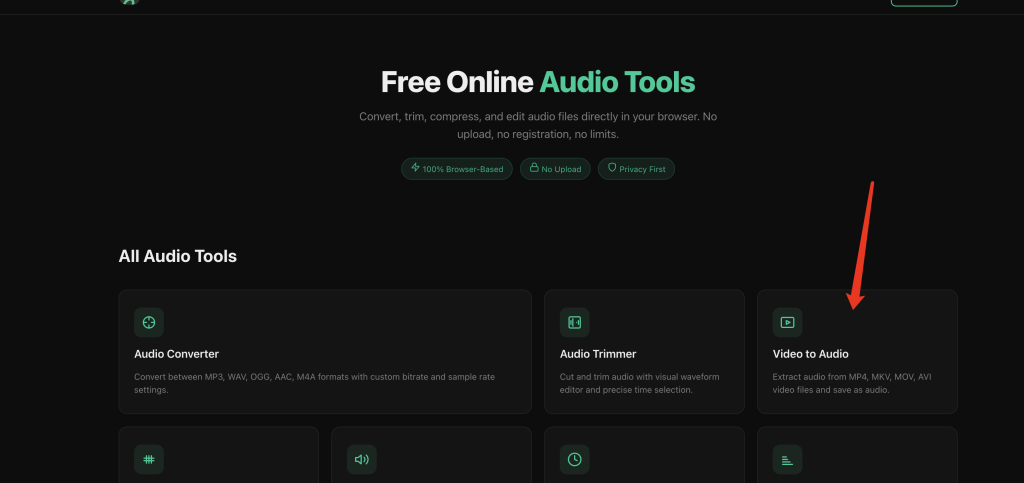
Step 1: Open the Video to Audio Tool
Go to AudioNeo Video to Audio. No signup, no install, no browser extension needed.
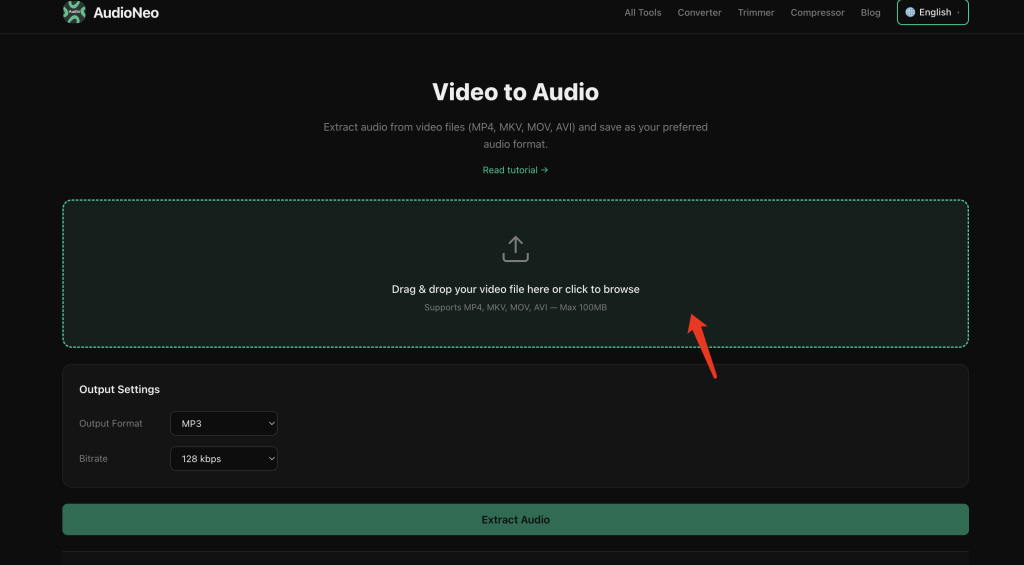
Step 2: Upload Your Video
Drag the video file onto the page, or click the upload area to browse your device. The tool accepts most common video formats: MP4, MOV, WebM, AVI, MKV, FLV, and more.
Step 3: Choose the Output Format
Pick what you want to extract. The dropdown has five audio formats: MP3, WAV, OGG, AAC, M4A.
Step 4: Adjust Quality Settings (Optional)
Leave it on default and the tool picks sensible settings. Want to tune it? Here’s what each option does:
Bitrate (64, 128, 192, 256, 320 kbps)
- 64–128 kbps: voice, podcasts, audiobooks
- 192 kbps: the sweet spot for most music and general use
- 256–320 kbps: high-quality music, only matters with good headphones
Sample Rate (22050, 44100, 48000 Hz)
- 44100 Hz is CD quality — what most people want
- 48000 Hz matches the original audio in most videos
- Going higher than the source doesn’t improve quality
Channels (Auto, Stereo, Mono)
- Auto keeps whatever the video has
- Mono cuts the file size in half — perfect for speech
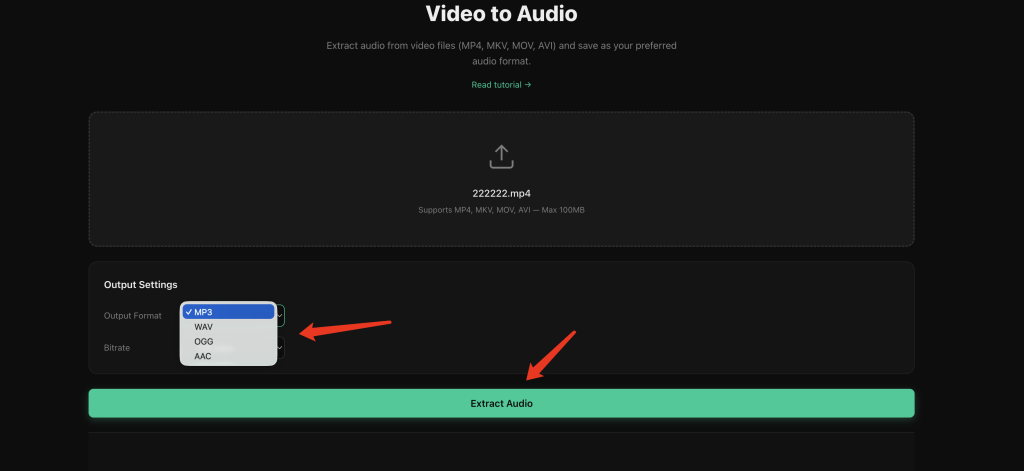
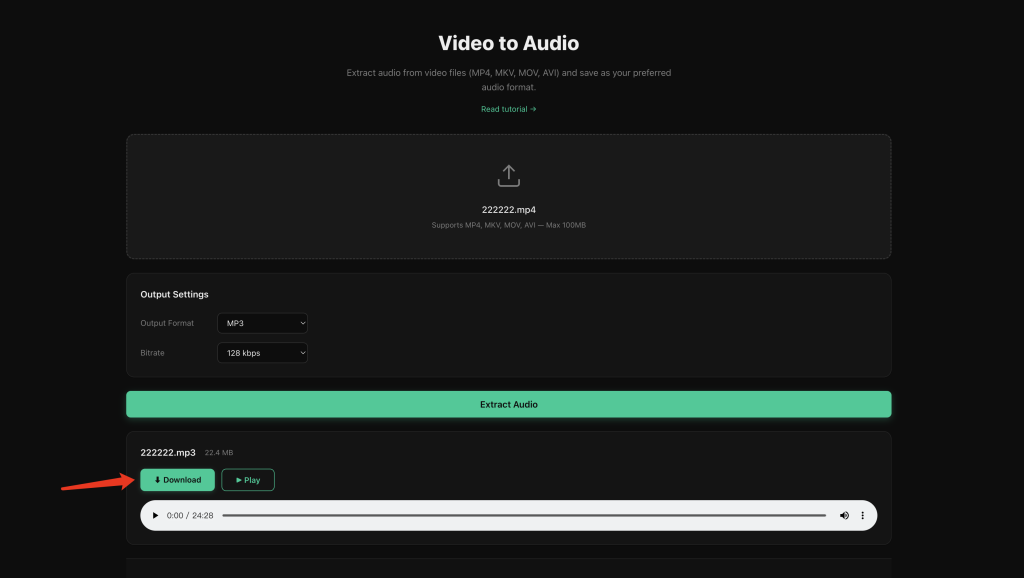
Step 5: Extract and Download
Hit the Extract Audio button. A 5-minute MP4 usually takes 5–20 seconds. The audio file downloads automatically when it’s done.
Which Output Format Should You Pick
MP3
The universal format. Plays on everything — phones, cars, old MP3 players, smart speakers. Pick this if you’re not sure.
WAV
Uncompressed, lossless. The audio quality is identical to what’s in the video. Use this if you’re going to edit the audio later in Audacity, Premiere, or any DAW. File size is bigger — about 10MB per minute.
AAC
Better quality than MP3 at the same bitrate. The default format for iPhone, YouTube, and Apple Music. Great if you’re an Apple user.
M4A
Essentially AAC in an Apple container. Same quality as AAC. The format iPhone Voice Memos use.
OGG
Open-source alternative to MP3. Same quality, smaller file size. Best for Android and web apps, but some older devices and car stereos won’t play it.
How to Choose the Right Bitrate
- 64–96 kbps: Speech, podcasts, audiobooks. Fine on phone speakers.
- 128 kbps: Minimum for music. Listenable on earbuds.
- 192 kbps: The sweet spot. Most people can’t tell the difference from the original.
- 256 kbps: High-quality music. Worth it for classical, jazz, acoustic.
- 320 kbps: Maximum quality for MP3. Diminishing returns for most listeners.
For voice-only content like lectures or interviews, 64 kbps mono gives you the smallest file with perfectly understandable audio.
Why Use AudioNeo?
- 100% private: The extraction runs in your browser using WebAssembly. Your video file never leaves your device.
- No upload wait: No waiting for a 2GB video to upload to a server. Processing starts instantly.
- No registration: Open the page, drop your file, get your audio. No email required.
- No file size limits: 10MB or 2GB, the tool handles it — as long as your browser has enough RAM.
- No watermark: The output is a clean audio file. No branding, no hidden markers.
- Completely free: No “free trial”, no credit card, no upsell to a pro plan.
Frequently Asked Questions
Does AudioNeo upload my video to a server?
No. The entire extraction process runs in your browser using ffmpeg.wasm (WebAssembly). Your video file never leaves your device. Close the tab and everything is gone.
What video formats are supported?
The tool works with whatever your browser can decode: MP4, MOV, WebM, AVI, MKV, FLV, WMV, and more. If your browser can play it, AudioNeo can extract the audio.
What’s the maximum video size I can process?
There’s no hard limit. It depends on your device’s RAM. Most modern browsers can handle 1–2GB video files without issues. Very large files (over 4GB) may struggle on machines with less RAM.
Will the extracted audio sound as good as the original?
That depends on the format you choose. WAV is lossless — it’s identical to the original audio track. MP3, AAC, and OGG are lossy formats, so there’s some quality loss, but at 192 kbps or higher most people won’t notice.
Can I extract just a part of the video?
Not directly in this tool. But you can use AudioNeo Audio Trimmer to cut the audio file after extraction — it takes 10 seconds.
How long does extraction take?
It depends on the video length and your device. A 5-minute video usually takes 5–20 seconds. A 1-hour video might take 1–3 minutes. It’s roughly real-time or faster on most computers.
Does AudioNeo work offline?
Yes, once the page has loaded. The WebAssembly engine gets cached by your browser. After the first load, you can disconnect from the internet and still extract audio.
Is it really free? What’s the catch?
It’s really free. No catch, no trial, no hidden fees. The tool runs entirely in your browser, which means our server costs are almost zero. That’s why we can keep it free forever.
Can I extract audio from YouTube videos?
You’ll need to download the YouTube video to your computer first, then drop it into AudioNeo. We don’t support direct YouTube URLs — and we don’t plan to, since that’s against YouTube’s terms of service.