Ever needed to speed up a podcast to save time, or slow down an audiobook chapter to catch every word? The problem with most free tools is they either mangle the audio quality or force you to download sketchy software.
With AudioNeo’s Speed Changer, you can adjust playback speed from 0.25x all the way up to 4x — right in your browser. No install, no upload, no watermark. And yes, it can preserve the original pitch so voices don’t sound like chipmunks or Darth Vader.
Why Change Audio Speed?
People speed up or slow down audio for all kinds of reasons:
- Learn faster. Bump a podcast or lecture to 1.5x and absorb content in a fraction of the time.
- Transcription & note-taking. Slow down fast speech to 0.75x so you can type along without pausing every two seconds.
- Language learning. Slow down native speakers to catch pronunciation, or speed up as you get more comfortable.
- Content creation. Adjust voiceover pacing to match video timing, or create slow-motion audio effects.
- Audiobooks on your own terms. Listen at 1.25x for a natural pace that still saves time, or slow down dense non-fiction.
Whatever your reason, the key is doing it without making the audio unlistenable. That’s where pitch preservation comes in.
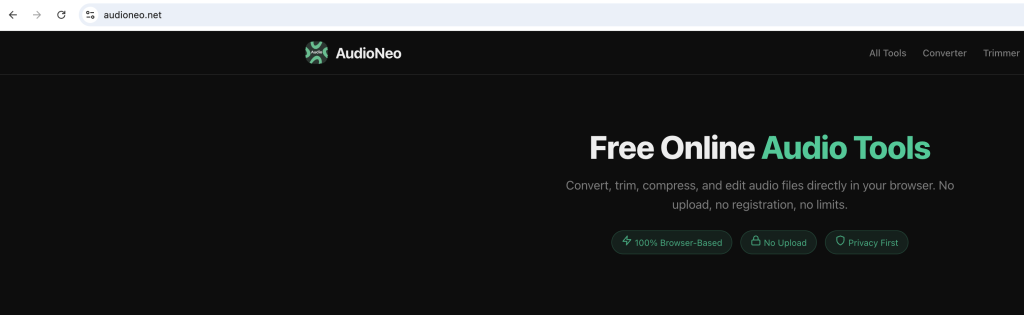
How to Change Audio Speed Online
AudioNeo’s speed changer works entirely in your browser. Your file never leaves your device. Here’s how it works.
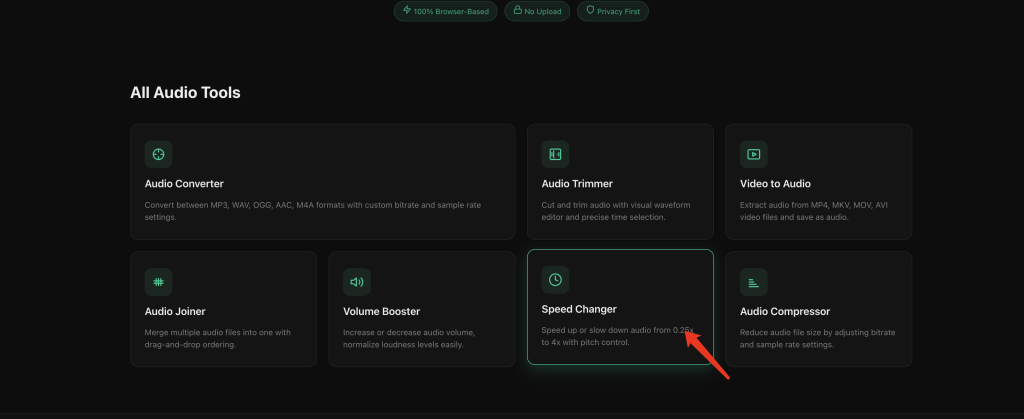
Step 1: Upload Your Audio
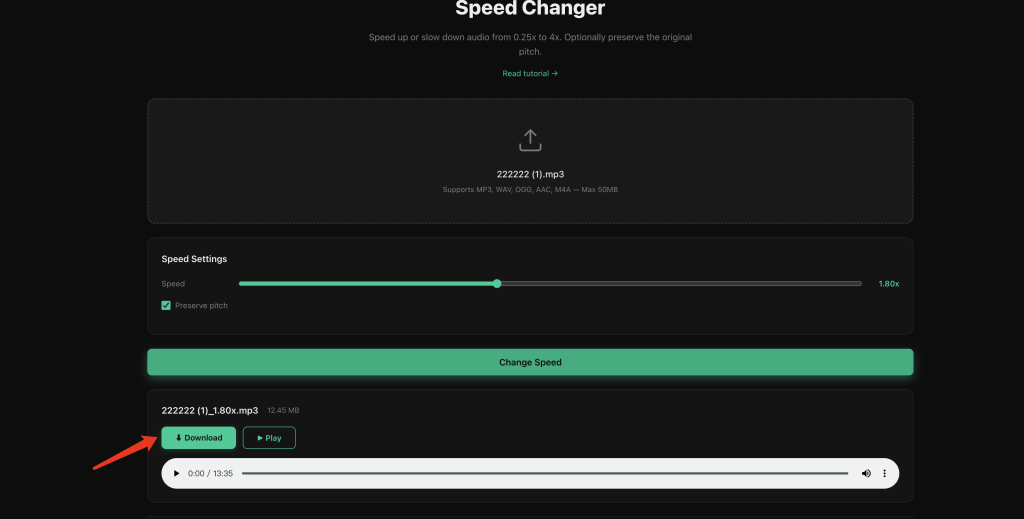
Go to the Audio Speed Changer page. Drag and drop your audio file onto the upload area, or click to browse and select one from your computer.
Supported formats: MP3, WAV, OGG, AAC, M4A
Max file size: 50MB
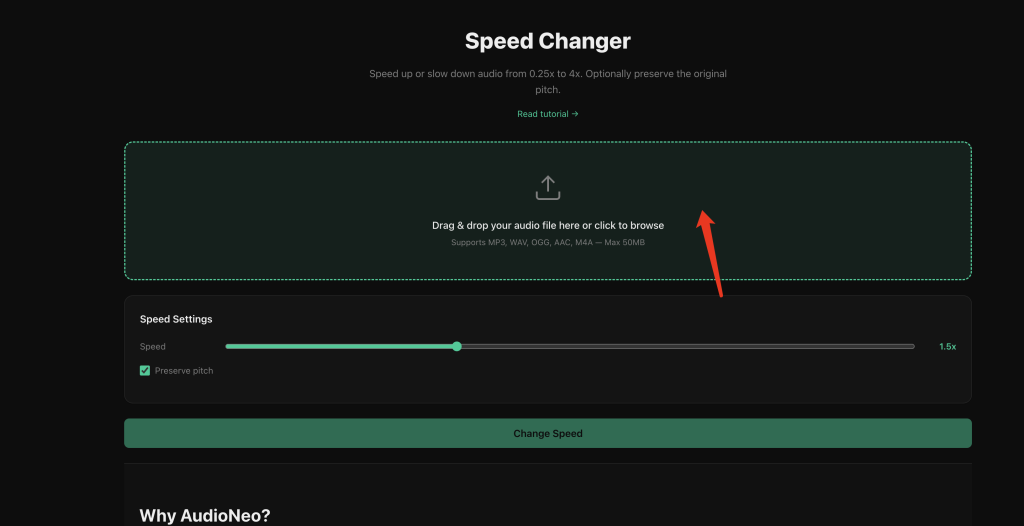
Step 2: Set Your Speed
Use the Speed slider to set your desired playback speed. The range goes from 0.25x (super slow) to 4.0x (very fast), in 0.05 increments. The default is 1.5x.
- Below 1.0x = slower audio (longer duration)
- Above 1.0x = faster audio (shorter duration)
- The current value is shown next to the slider in real time
Step 3: Choose Whether to Preserve Pitch
Below the speed slider, you’ll see a Preserve pitch checkbox. It’s on by default — and for most cases, you’ll want to leave it on.
With pitch preservation (recommended): The tempo changes but the pitch stays the same. A human voice still sounds like a normal human voice, just faster or slower. This uses FFmpeg’s atempo filter.
Without pitch preservation: Speed and pitch are linked. Speed it up and everything gets higher-pitched (chipmunk effect). Slow it down and everything gets deeper. This can be a creative effect, but it’s not what most people want for spoken content.
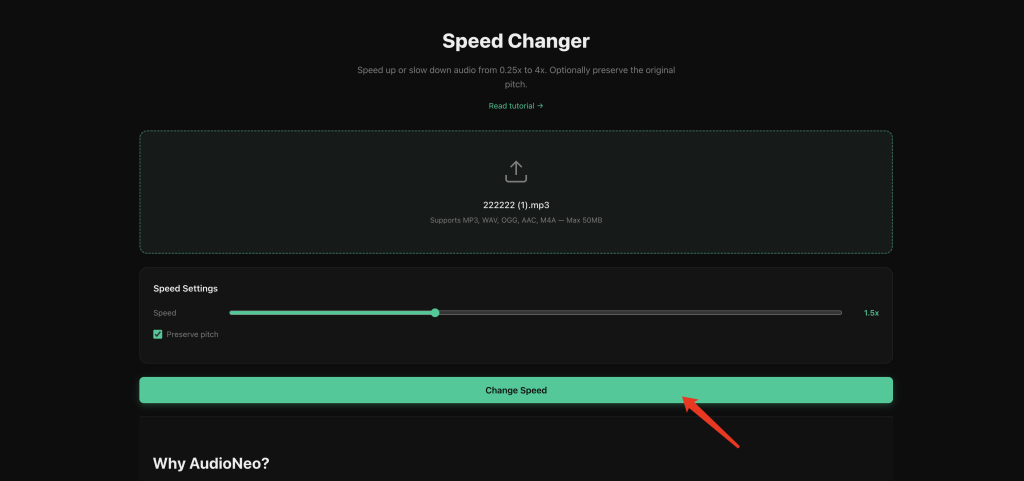
Step 4: Process and Download
Click the Change Speed button. The tool will process your file locally in your browser using FFmpeg WebAssembly. When it’s done, you can:
- Preview the result with the built-in Play button
- Check the file name and size
- Click Download to save the speed-adjusted file to your computer
The output file keeps the same format as the original, with the speed value appended to the filename (like podcast_1.50x.mp3).
Tips for Best Results
- For podcasts and audiobooks: Start with 1.25x to 1.5x with pitch preservation on. Most people find this range natural and easy to follow.
- For music without vocals: Try turning off pitch preservation for interesting effects — speed up a song and it shifts key automatically.
- For slow-motion video audio: Use 0.5x to match slow-motion footage. With pitch preservation on, the audio stays natural.
- Need to go faster than 2x? The tool handles it automatically by chaining multiple atempo filters. You don’t need to do anything special.
- Large files might take a minute. Processing happens on your device, so speed depends on your computer’s performance.
Why Use AudioNeo Speed Changer?
There are a lot of audio speed tools out there. Here’s what makes this one different.
It’s 100% Private
Your audio file never gets uploaded to a server. Everything runs locally in your browser using WebAssembly. If you’re working with sensitive recordings, interviews, or personal voice memos, this matters a lot.
It Preserves Quality
Powered by FFmpeg — the same engine professionals use. The atempo filter delivers clean speed changes without the artifacts you get from cheap online tools.
No Strings Attached
No account. No email required. No watermarks. No daily limits. No “free trial” that cuts you off after 30 seconds. Just upload, adjust, download.
Works Everywhere
Chrome, Firefox, Safari, Edge — desktop or mobile. As long as you have a modern browser, it works. No apps to install, no plugins.
FAQ
How fast can I make audio?
Up to 4x speed. That’s four times faster than the original. A 60-minute podcast becomes 15 minutes.
Can I slow down audio too?
Absolutely. The minimum is 0.25x — a quarter of the original speed. Great for transcription or learning a new language.
Will speeding up audio make voices sound weird?
Not if you keep Preserve pitch turned on (it’s on by default). The tool changes the tempo without shifting the pitch, so voices stay natural-sounding.
What audio formats are supported?
MP3, WAV, OGG, AAC, and M4A. The output stays in the same format as your input file.
Is there a file size limit?
Yes — 50MB per file. That’s enough for most podcasts, audiobook chapters, voice recordings, and song-length tracks.
Does my file get uploaded somewhere?
No. Everything happens in your browser. Your audio never leaves your device. You can even use the tool offline once the page has loaded (though you’ll need internet the first time to load the FFmpeg engine).
Can I use this on my phone?
Yes. The tool works on mobile browsers just like it does on desktop. Upload from your phone’s files, adjust the speed, and download back to your device.
Is this speed changer really free?
Yep. Forever free. No subscriptions, no hidden fees, no paywalls. The whole AudioNeo toolset is free to use.
More Audio Tools
Need to do more with your audio? Check out these other free tools:
- Audio Converter — Convert audio files between formats
- Audio Trimmer — Cut and trim audio clips
- Volume Booster — Make quiet audio louder
- Audio Joiner — Merge multiple audio files together
- Audio Compressor — Reduce audio file size
- Video to Audio — Extract audio from video files
All free, all browser-based, all private.